Website Migration Checklist: Move a Site Without Losing Traffic
On this page
Launch goes well. The new site looks great, the CEO sends a nice note, and everyone goes home happy.
Three weeks later someone opens analytics and asks why organic traffic is down. Now you're pulling logs at 9 PM, trying to remember what the old URLs even were.
That story plays out so often because a website migration fails silently. Nothing crashes. The pages load, and the damage shows up in a report weeks after the team has moved on. Google's own site move documentation warns you to expect temporary ranking fluctuation, and says a medium-sized site can take a few weeks or more for the new URLs to start replacing the old ones. Some turbulence is normal. Losing a third of your traffic for good usually comes down to steps someone skipped, so here's the website migration checklist I'd work from.
What a site migration is and when you need this checklist
A site migration is any large change to a website's URLs, domain, platform or structure that can affect how search engines find and rank it. Use a website migration checklist whenever your address structure changes, you switch CMS or domain, or you merge sites.
Not every website migration carries the same risk:
| Type of move | URLs change? | Risk |
|---|---|---|
| New hosting or CDN, same URLs | No | Lower |
| HTTP to HTTPS | Protocol only | Lower to medium |
| Redesign on the same platform | Sometimes | Medium |
| New CMS or ecommerce platform | Usually | High |
| New domain | All of them | High |
| Merging several sites | Most of them | Highest |
Google's advice is to move in stages if you can, starting with a section so you can test before committing the entire site. Larger website migrations often benefit from this, though it adds complexity because the old and new sites have to coexist for a while.
If you're also restructuring what's on the pages, deciding what to keep, rewriting fields, cleaning up old posts, that's a separate workstream. My guide to content migration handles that side. This checklist covers the search and technical side.
Before launch: benchmark, crawl and URL map
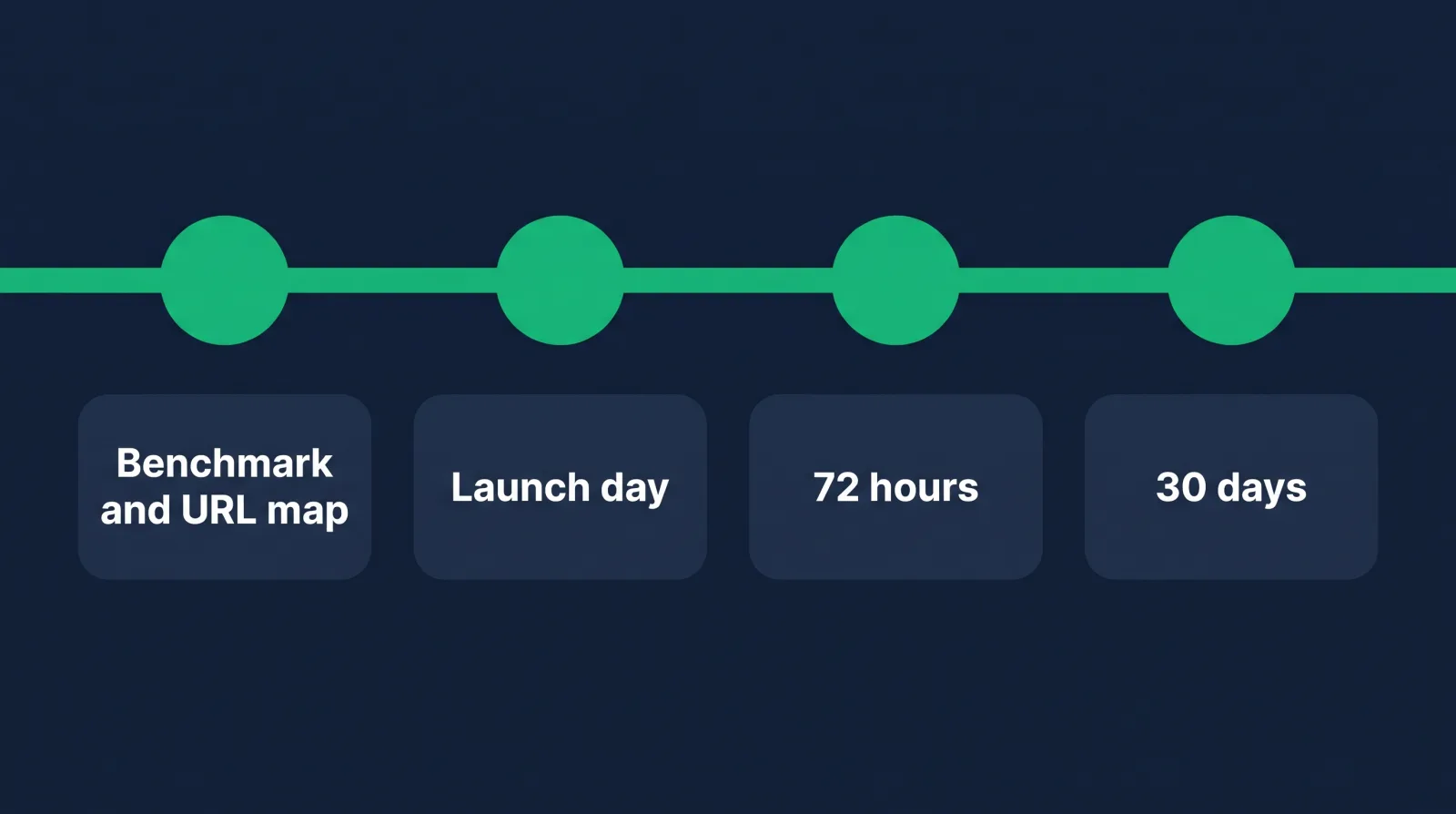
Before you change anything, record how the site performs now, crawl every URL it has, and build a map pairing each old URL with its new home. That map is the backbone of the whole website migration, and everything later depends on it being complete.
Benchmark first. Once you've launched, this data is gone or harder to compare.
- Export 16 months of Search Console performance data by page and query (that's all it keeps)
- Export traffic and conversions per landing page from analytics
- Record the indexed page count from Search Console's page indexing report
- Note rankings for your 50 to 100 most valuable keywords
- List top pages by backlinks using Ahrefs, Semrush or Search Console's links report
- Record Core Web Vitals, so nobody can blame the wrong thing later
Crawl the old site. Screaming Frog is free up to 500 URLs, and a paid license goes beyond that. Save the full export of URLs, status codes, titles, meta descriptions, canonicals and H1s.
A crawl only finds pages that are linked to, so merge it with URLs from your sitemap, analytics, Search Console and backlink tools. Those extra sources turn up old campaign pages and orphans that a crawl won't, and those are often the exact URLs with links pointing at them.
Build the URL map. One row per old URL, and one destination each. Google calls this preparing a URL mapping, and it's the step I'd refuse to skip. Keep URLs unchanged wherever you can. Prioritize the pages driving the most traffic and revenue and review those by hand.

Before launch: redirects and staging
Turn your URL map into server-side 301 redirects, test them, and build the new site on a staging environment blocked from search engines. Compare staging against the old site so that titles, canonicals, structured data and internal links carry over correctly.
Redirect rules:
- Use server-side permanent redirects, 301 or 308
- Send each old URL to its closest match, never everything to the homepage
- Redirect straight to the final URL, without chains
- Cover the variants: http and https, www and non-www, trailing slashes
- Decide what returns a 404 or 410 on purpose
On chains, Google says Googlebot follows up to 10 hops but recommends redirecting directly to the destination, and ideally staying under three if you can't. Old sites often have chains already from past redesigns, so update those older ones to point straight at the new page.
Staging checks:
- Block staging with a password or IP restriction (better than relying on robots rules)
- Crawl staging and compare it with the old site's crawl
- Confirm titles, meta descriptions and H1s came across
- Confirm canonical tags point at the new production URLs, not staging
- Check structured data, hreflang and image alt text
- Update internal links to point at the new URLs rather than relying on redirects
- Test on mobile, since Google mostly crawls the mobile version
- Test forms, checkout and search
- Add analytics, tag manager and conversion tracking, then confirm events fire
- Generate the new XML sitemap and prepare the production robots.txt
Take a full backup of the old site and database and confirm you can restore it. Write down your rollback plan and who gets to make that call. It's far better to decide that on a calm Tuesday than during an outage.
Pick a launch window during your lowest-traffic period, and avoid your busiest sales season. Tell paid media, email, support and anyone else whose links or processes will be affected.
Website migration checklist for launch day
On launch day, deploy the new site, remove staging restrictions, activate redirects and confirm immediately that search engines can crawl it. Then test your highest-value URLs by hand before announcing that the migration is finished, and keep someone on call.
- Freeze content on the old site
- Deploy and activate the redirects
- Remove staging password,
noindextags and robots blocks - Open robots.txt on the live site and read it yourself
- Test your top 50 old URLs and confirm each redirects once, to the right page
- Run a full crawl of your old URL list against production
- Confirm the SSL certificate is valid across all hostnames
- Place a real test order or lead, and check that it reaches its destination
- Verify analytics is recording live traffic
- Submit the new sitemap in Search Console
- For a domain change, use Search Console's Change of Address tool
The most common launch-day disaster is also the dumbest: a leftover noindex tag or a robots.txt that says Disallow: /, copied straight from staging. Check it first, and then have someone else check it.
Keep the old sitemap available for a short time too, so that search engines can discover the redirects on those old URLs more quickly. And don't cancel the old domain. Google says to keep redirects for as long as possible, generally at least a year, so that signals have time to transfer. For users, it suggests considering keeping them indefinitely.
First 72 hours after the move
In the first 72 hours of a website migration, watch for crawl errors, broken redirects, tracking gaps and server strain. Fix anything affecting high-value pages immediately, because small errors are easy to correct now and much harder to untangle once they've been crawled and indexed.
Run a check each morning:
Server logs and status codes. Look for a spike in 404s or 500s. Googlebot may crawl heavily after a move, and Google's docs recommend making sure your server can handle the extra load.
The 404 list. Anything getting traffic or holding backlinks deserves a redirect today. Your URL map was very good, and it still missed something. They all do.
Analytics. Sessions are one thing to check, conversions another. A form that quietly stopped sending leads will look fine in traffic reports.
Search Console's URL Inspection. Test a handful of important new pages. Are they crawlable? Is the Google-selected canonical the one you intended?
Spot-check actual searches. Search for a few of your brand and top commercial terms and click the result. You're looking for dead ends.
Now's the time to hold off on other changes. No new templates, no extra URL edits, no big content pushes. Every change you add makes it harder to work out what caused what.

First 30 days: Search Console and analytics
Over the first 30 days of a website migration, compare traffic, indexed pages and rankings against your benchmark on a weekly basis, focusing on your most valuable pages. Expect fluctuation while Google recrawls, and investigate any page or section that keeps dropping instead of recovering.
A weekly review could look like this:
- Search Console's page indexing report: are new URLs being indexed, and old ones dropping out as "page with redirect"?
- Performance by page: compare with the same days before launch, adjusting for seasonality
- Crawl stats: is Googlebot able to crawl without errors?
- Conversions per landing page, against your benchmark
- Rankings for your priority keywords
- Backlinks: ask the sites sending you the most valuable links to update their URLs
- A fresh full crawl for broken links, chains and redirect errors
Compare page groups instead of staring at the site total. A flat overall graph can hide a 60% drop in your product pages offset by a brand spike. If one directory or template is falling while the others are stable, you've likely found a template bug, a lost block of copy or a bad batch of redirects.
During a site migration, report honestly as you go. Tell leadership ahead of time that a dip may happen and what you'll be watching. "We expected some movement, and here's where we stand against the benchmark" is a calm conversation. "Why didn't anyone warn me?" isn't.
A lot of this monitoring can be put on rails. This guide on how to automate your SEO workflow shows which checks are safe to hand to a tool.
The SEO migration mistakes that sink traffic
Most SEO migration failures come from a short list of avoidable errors: missing or incorrect redirects, content removed during a redesign, internal links left on old URLs, tracking dropped at launch, and search engines accidentally blocked from the new site. Each one is preventable with testing before launch.
Two get underestimated.
Losing content without noticing. A designer trims the copy on a category page because it looks cleaner. That page ranked because of the copy. Compare word counts per template between old and new, because the design review will never catch this.
Changing everything at once. A new domain, platform, design, URL structure and copy, all in one weekend, means that when traffic falls you have five suspects and no way to question them. If the business insists, at least keep the URLs and the content stable where you can.
Others worth a mention: redirecting every removed page to the homepage, shipping a slower site, hiding copy behind scripts that only render in a browser, and letting the old domain expire.
And the one nobody writes down: treating launch as the finish line. A website migration's budget usually ends the day of launch, while the risk mostly starts then. Keep someone assigned for at least a month. If you only remember one line from this post, make it this: a migration is finished when the traffic is back.
Who runs a website migration, and how to learn it
Migrations are typically run by a web content manager, web administrator, technical SEO or project lead, usually working with developers. Companies need this skill only occasionally, but badly, which makes someone who's done one hard to replace.
You might be thinking, that sounds like developer work, and I'm not a developer. Developers will usually handle the server configuration. A huge share of the rest is spreadsheets, checking pages, working with stakeholders and being more careful than everyone else in the meeting. That's learnable.
It's a natural step up from CMS work, and if you enjoy the technical part you could head toward becoming a technical SEO specialist. Picking a platform matters too. If you're weighing the two big open-source options, I've got an honest comparison of Drupal vs WordPress for people choosing a career CMS.
To practice with no employer behind you, build a small WordPress site, change its URL structure, write the redirects and record what happens in Search Console. Document the URL map, the crawl comparisons and what broke. These web administrator portfolio examples show how to present work like that so a hiring manager actually reads it.
FAQ
How long until traffic recovers after a website migration?
There's no honest fixed number. Google says medium-sized sites can take a few weeks or more for new URLs to replace old ones, and larger ones longer. Site size, server speed, redirect quality and how much changed all play a part.
Do you lose SEO when you change web hosts?
Not necessarily. If URLs and content stay the same, a hosting move is one of the safest changes you can make. Lower your DNS TTL ahead of time, make sure the new server can handle crawling, and watch for errors.
What's the difference between a 301 and a 302 redirect?
A 301 is permanent and tells Google to show the new URL in search results. A 302 is temporary, so the original URL generally stays in results. Use 301s for a migration, and save 302s for short-term changes.
Should you change the design and URLs at the same time?
Avoid it if you can. Separate launches make it far easier to find the cause of any drop. When budget or timing forces it, keep URLs and on-page copy as stable as you can and test harder.
If you got to the end of this migration checklist and thought, I'd actually be good at this, I believe you. Being careful and a bit paranoid is a real professional advantage on the web, and companies pay for it when there's a lot of traffic on the line.
Our Web Content Manager career path is where we teach that work, and Content Management Systems for Content Editors is a good place to get your hands on a real CMS. Diamond Membership lists at $60/month or $365/year, and there's always at least 30% off, so it lands around $42/month or $255/year. You get 90+ courses, guided paths, portfolio templates, an ATS-ready résumé builder, the job board, and an 80,000+ member community, plus Accountability on Wednesdays at 7 PM ET and Money Talk on Sundays at 8 PM ET, both live. Our students go after roles paying $75k+, individual results vary, and the 7-day money-back guarantee has your back.
Bring your practice migration to a call. We've been helping people make this switch since 2016, and we'd be glad to help you too.